Overview
Kollab Studio is where you manage everything you’ve created on Kollab — your communities and courses. From here, you can preview sales pages, edit settings, manage pricing, control discoverability, and more.
How to access Kollab Studio
Click your Profile icon in the top-right corner of the screen.
From the dropdown menu, click Kollab Studio.
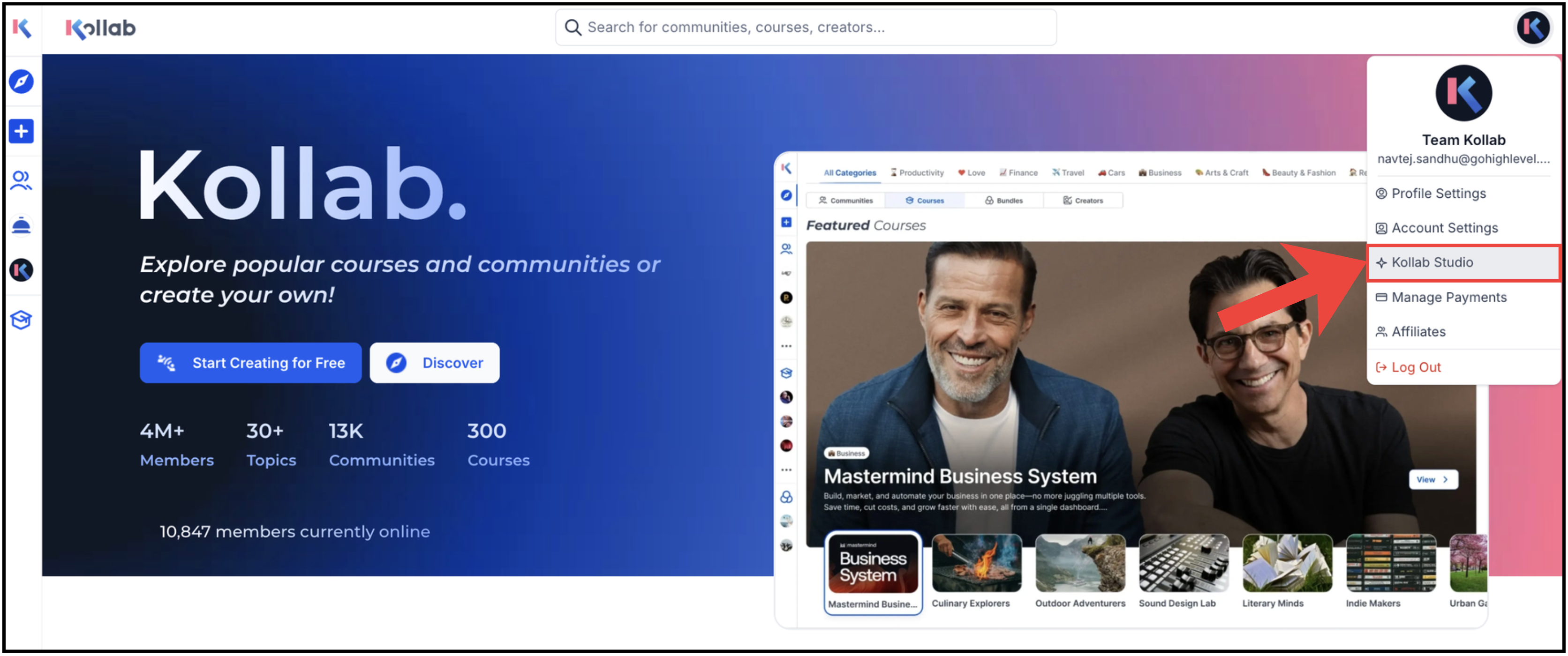
You’ll now land on the Kollab Studio dashboard, where all your created products are listed.
What you’ll see inside Kollab Studio
Kollab Studio is divided into two main sections:
Communities
Courses
You can switch between them using the left sidebar.
Each community or course is shown as a card with a three-dot (kebab) menu that lets you manage it.
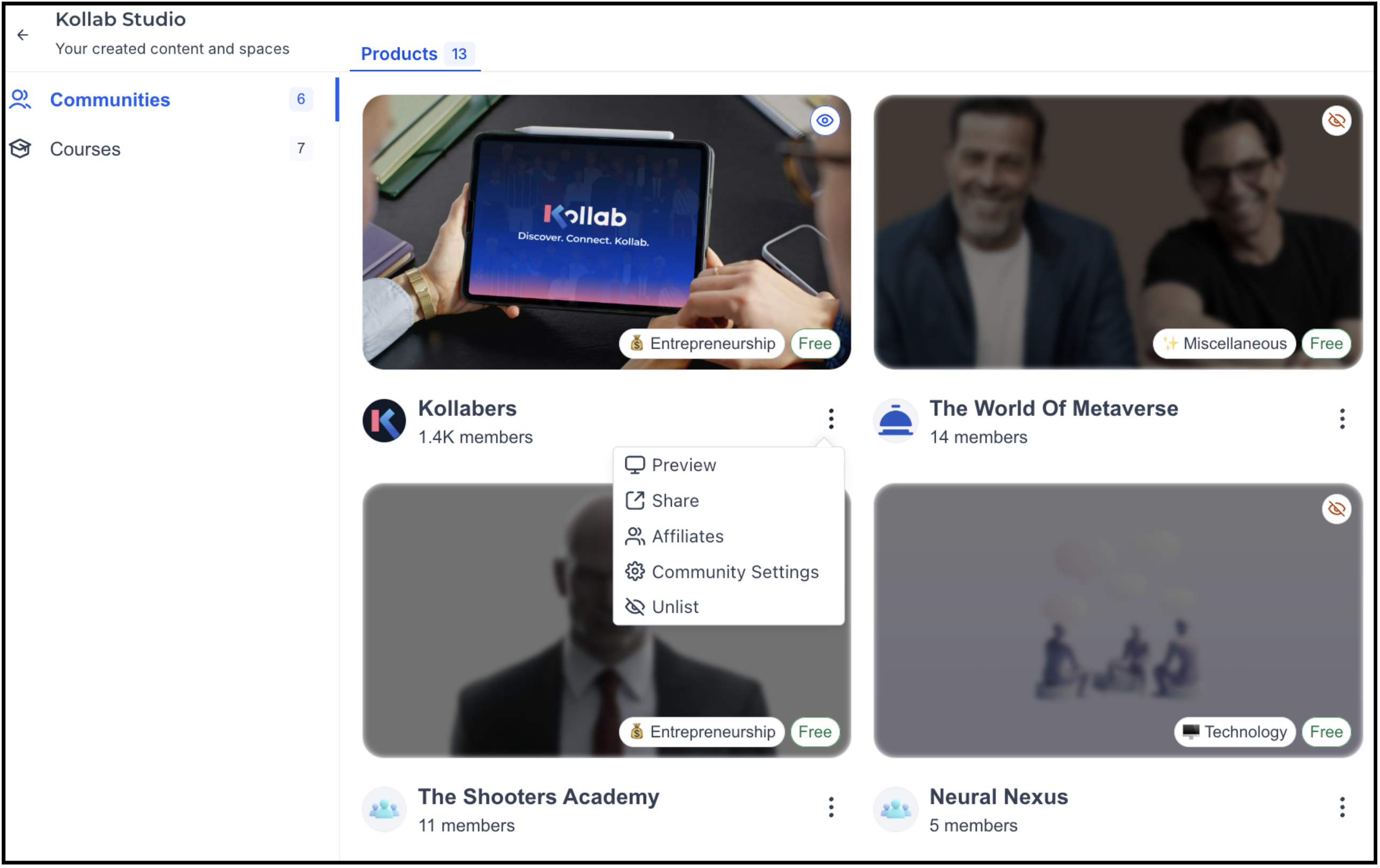
Managing communities
To manage a community:
Go to Kollab Studio → Communities
Click the three-dot (⋮) menu on a community card
Available options for communities
Preview
View the community’s sales page as users will see it.Share
Copy or edit your community URL to share it with others.Affiliates
Enable and manage affiliate rewards, allowing members to earn by inviting others to your paid community.Community Settings
Manage key details, including:Pricing (free or paid)
Cover image & logo
Community title & description
Public or private visibility
List / Unlist
Control discoverability:List → Community appears on the Discover page
Unlist → Community is hidden from the Discover page
Note: Unlisting does not affect existing members’ access.
Managing courses
To manage a course:
Go to Kollab Studio → Courses
Click the three-dot (⋮) menu on a course card
Available options for courses
Preview
View the course sales page as learners see it.Share
Copy or edit your course URL.Edit Course
Update your course content, including:Lessons
Modules
Structure and flow
Course Settings
Manage course details such as:Pricing
Cover image & logo
Course title & description
Lessons/Modules/Quizzes
List / Unlist
Control whether your course appears on the Discover page:List → Discoverable
Unlist → Hidden from Discover
Quick Tips & Best Practices
Use Preview before sharing links to ensure your sales page looks right.
Keep listings unlisted while you’re still building or testing.
Update pricing and visuals from Settings anytime — changes apply instantly.
Listing your product helps increase visibility and discovery on Kollab.
Was this article helpful?
That’s Great!
Thank you for your feedback
Sorry! We couldn't be helpful
Thank you for your feedback
Feedback sent
We appreciate your effort and will try to fix the article